MoJo (UI) - Tool
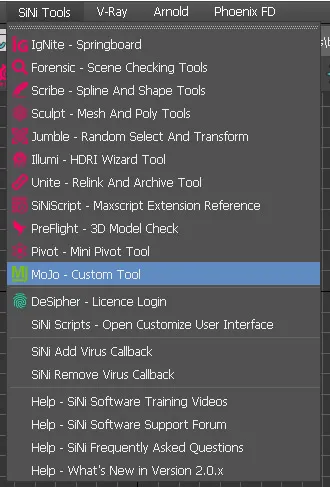
Open MoJo by accessing it from the top SiNi dropdown menu.
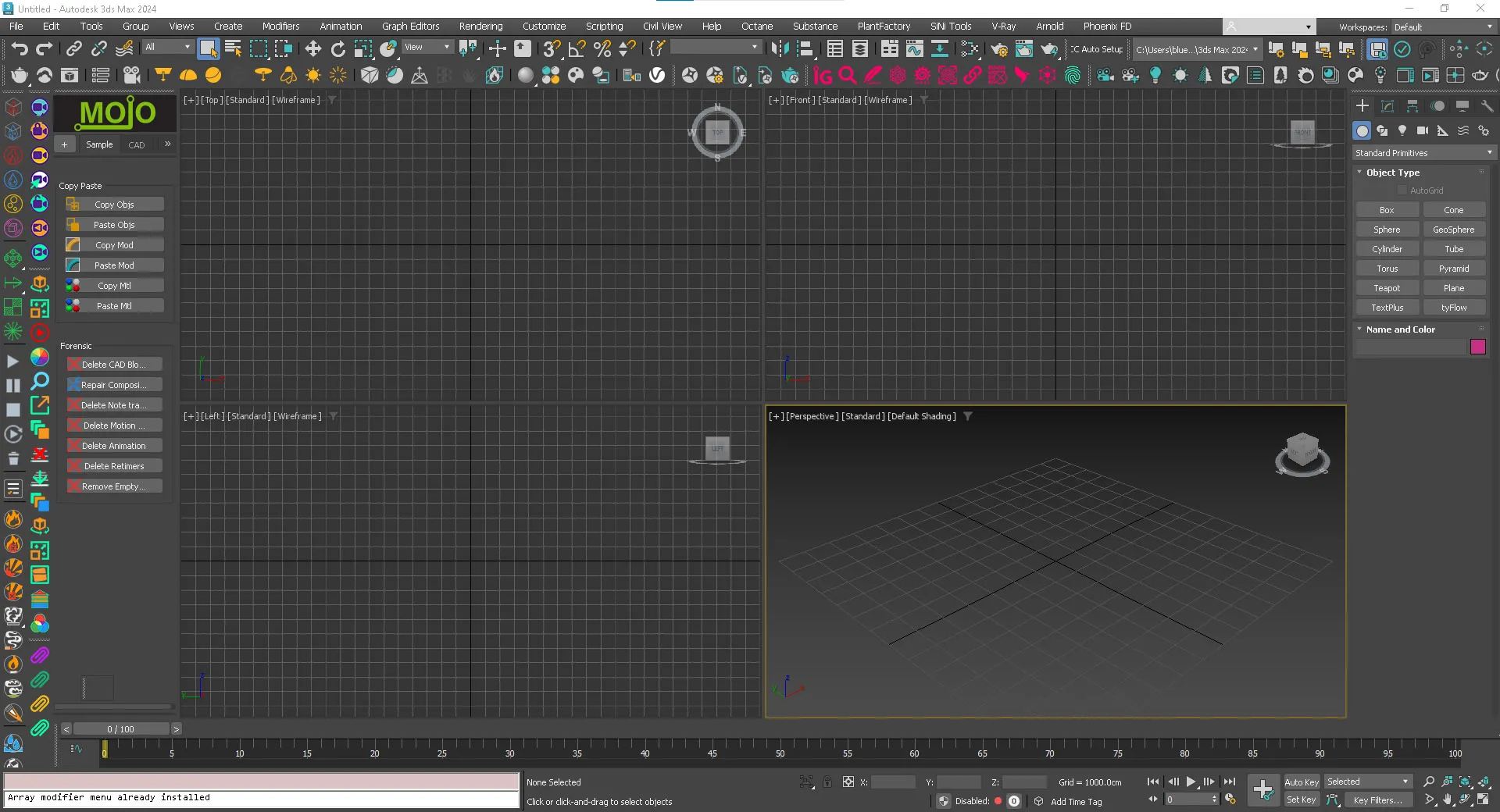
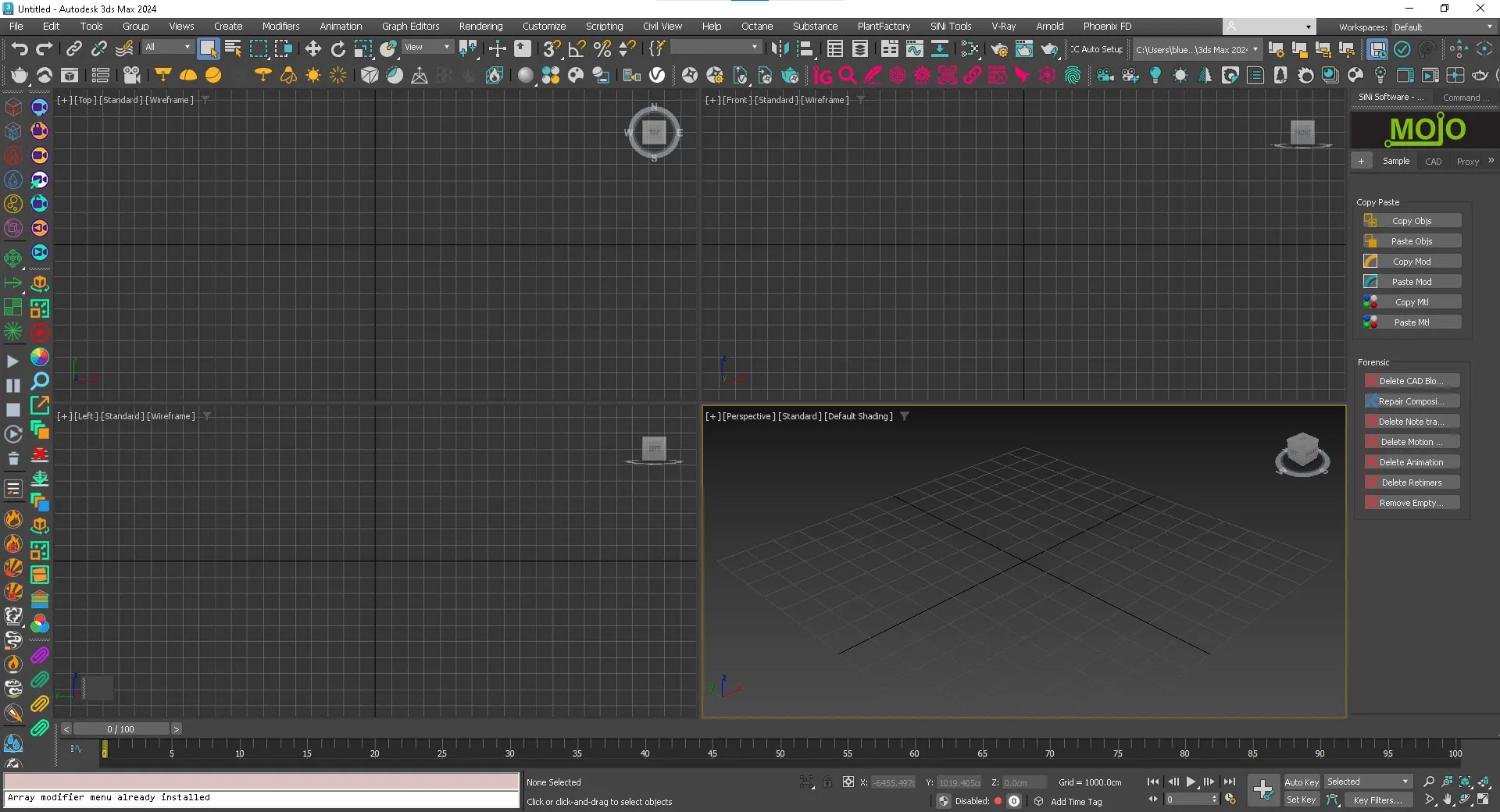
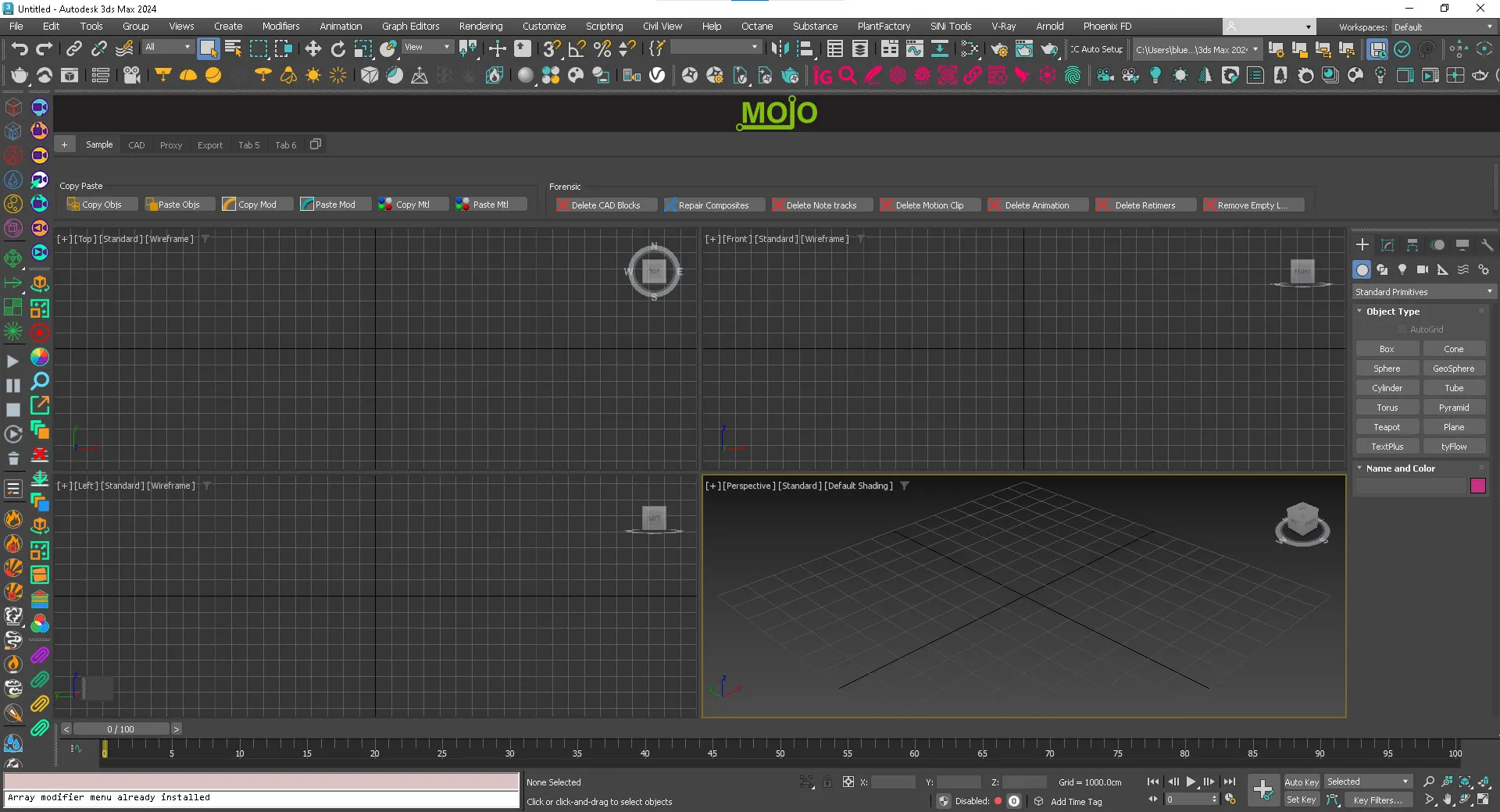
MoJo UI
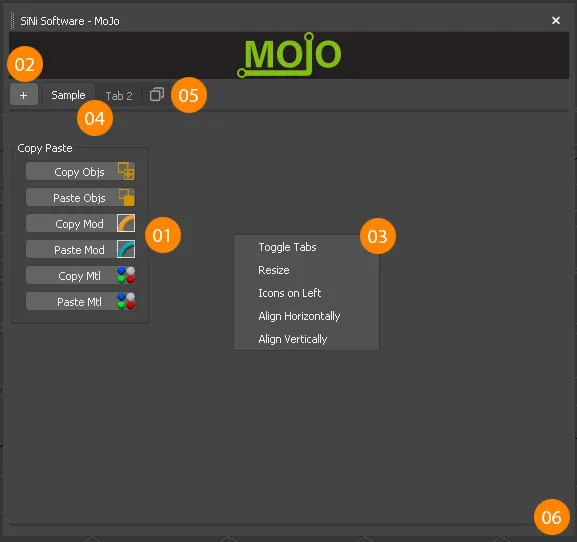
01. MoJo Widget
02. Add new Widgets to MoJo
03. Right-Click Menu
04. Tabs
05. Add new Tab
06. Resize MoJo
01. MoJo Widget
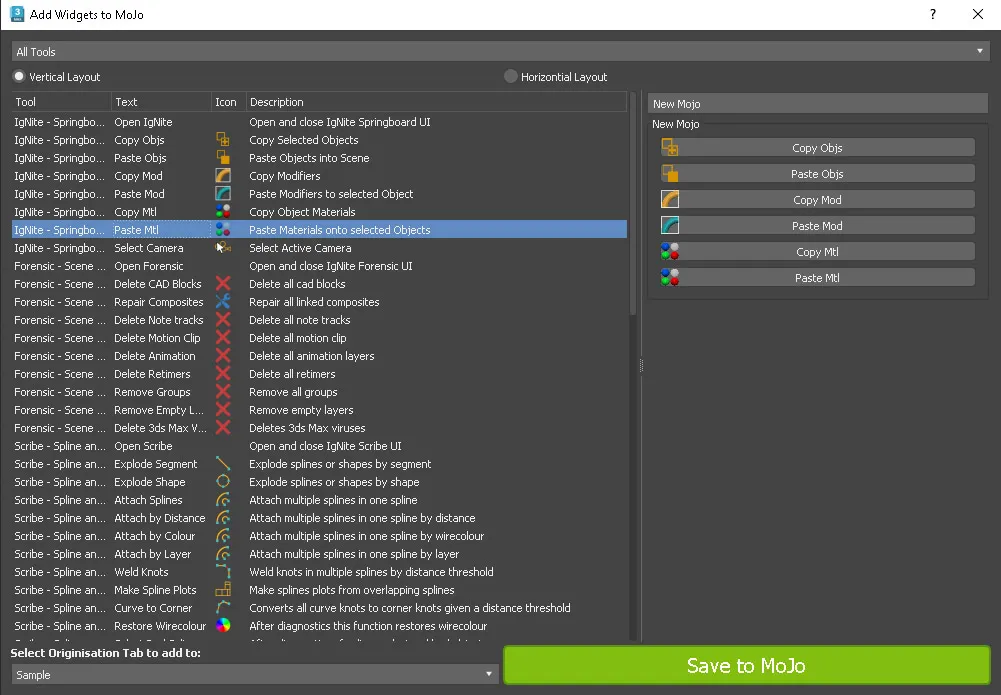
MoJo widgets are made using the MoJo (UI) - Add Widgets.
02. Add new Widgets to MoJo
Click the plus button to MoJo (UI) - Add Widgets. to the selected tab.
03. Right Click Menu
Right click anywhere in the MoJo UI to bring up the general menu. Right click over a widget will bring up Widget menu. Please see below for each.
3.01. Toggle Header Tabs
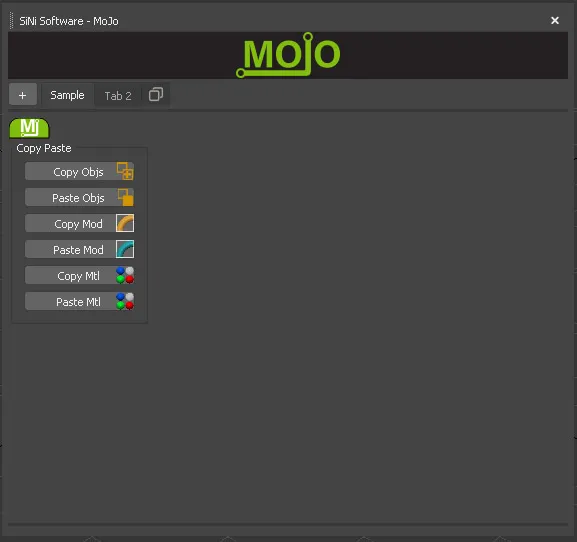
A green MJ tab will appear on each Widget. This allows you to move the widgets around using the LMB.
Multi-select widgets by dragging your mouse over them or LMB + [Shift].
Switch off the MJ to lock the widget Align place.
3.02. Resize Widget
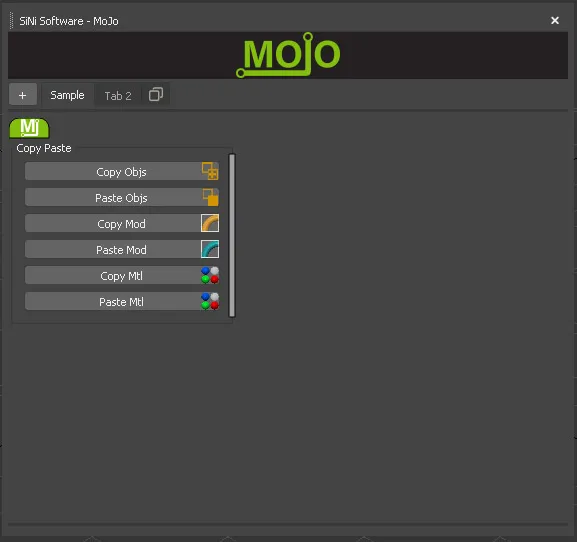
Selecting Resize allows you to resize the widgets, making them smaller or larger depending on widgets preference.
3.03. Icons on Left
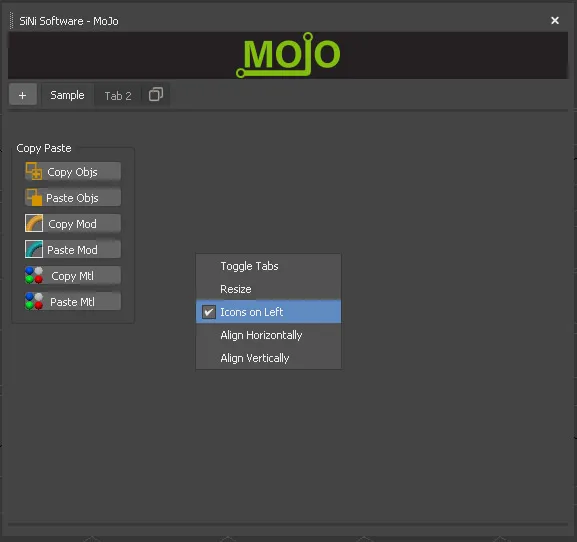
Icons on the move move the icons so they are left-side orientated. This is helpful if you plan to resize the Widget to a small size, and rely on icons to identify.
3.04. Align Horizontally
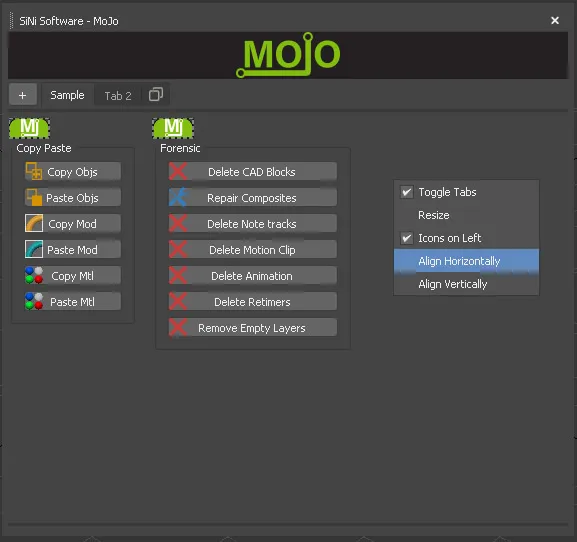
Align the selected Widgets horizontally. Please select the Widgets first by activating Toggle Tabs and selecting the Widgets to align. They will have a dashed outline around the Toggle Header Tab.
3.05. Align Vertically
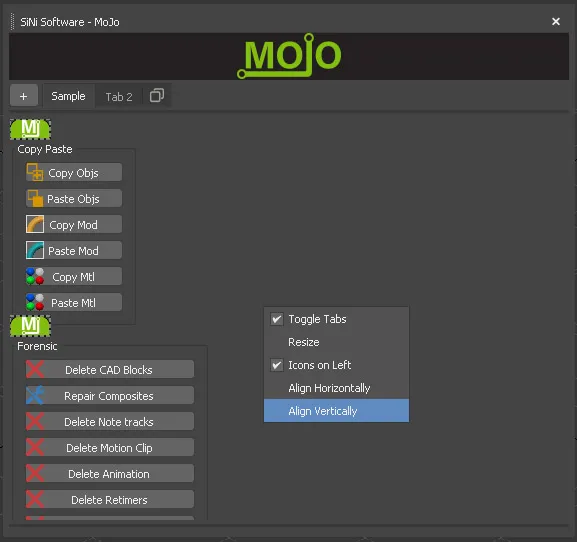
Align the selected Widgets vertically. Please select the Widgets first by activating Toggle Tabs and selecting the Widgets to align. They will have a dashed outline around the Toggle Header Tab.
03.06. Edit Widget
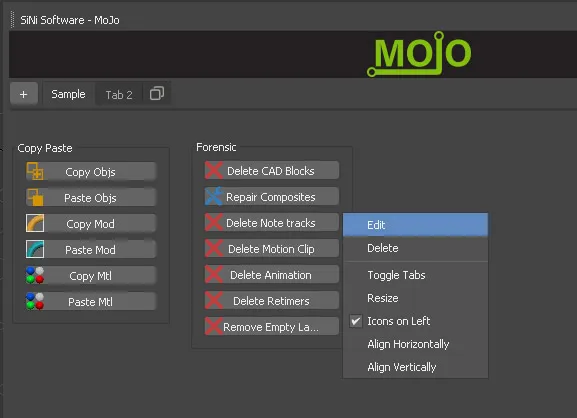
The menu is only activated if right-clicked over a widget.
Select Edit to modify the Widget.
The MoJo (UI) - Add Widgets. will open allowing updates to the Widget. Right-click over a tool to delete.
04. Organisation Tabs
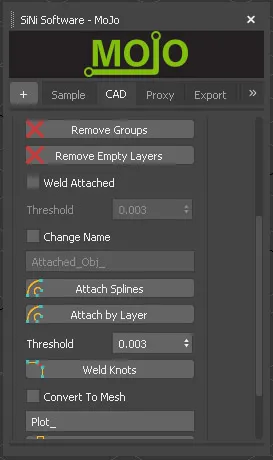
Across the top row are Organisation Tabs. Tabs are handy to organise widgets into specific workflow tasks. For example, you may want a Tab for CAD tasks, or working with Proxies.
To create a new Tab click the Icon on the right. To rename double-click the default text name. To delete a tab right-click over the tab.
06. Resize MoJo
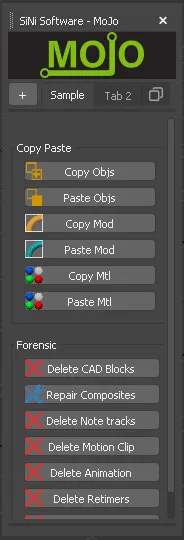
To change the size of the UI click on the right side or bottom border.
07. Docking MoJo UI
You can dock the UI. We suggest only docking left or right using the vertical format. Docking top or bottom takes up a lot of screen space.