Unite (UI) - Optimise / Re-path
Tip - 3ds Max plugin help
Clicking on the question mark in the header will open this help document page.
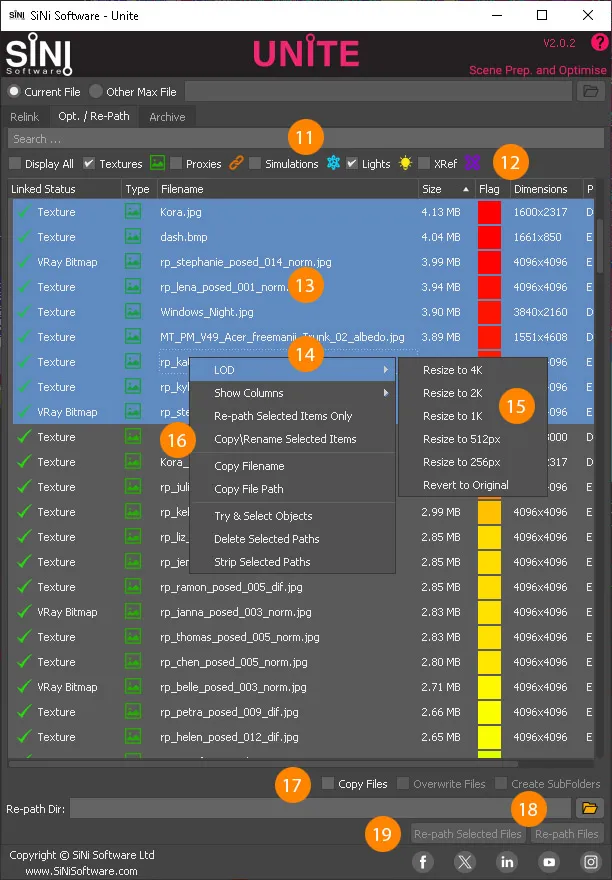
11. Search Bar
Search within the list below for items.
12. Class Categories Selection
Checkboxes to select ALL or categories to be listed below. See Unite (UI) - Relink for more info.
13. List view
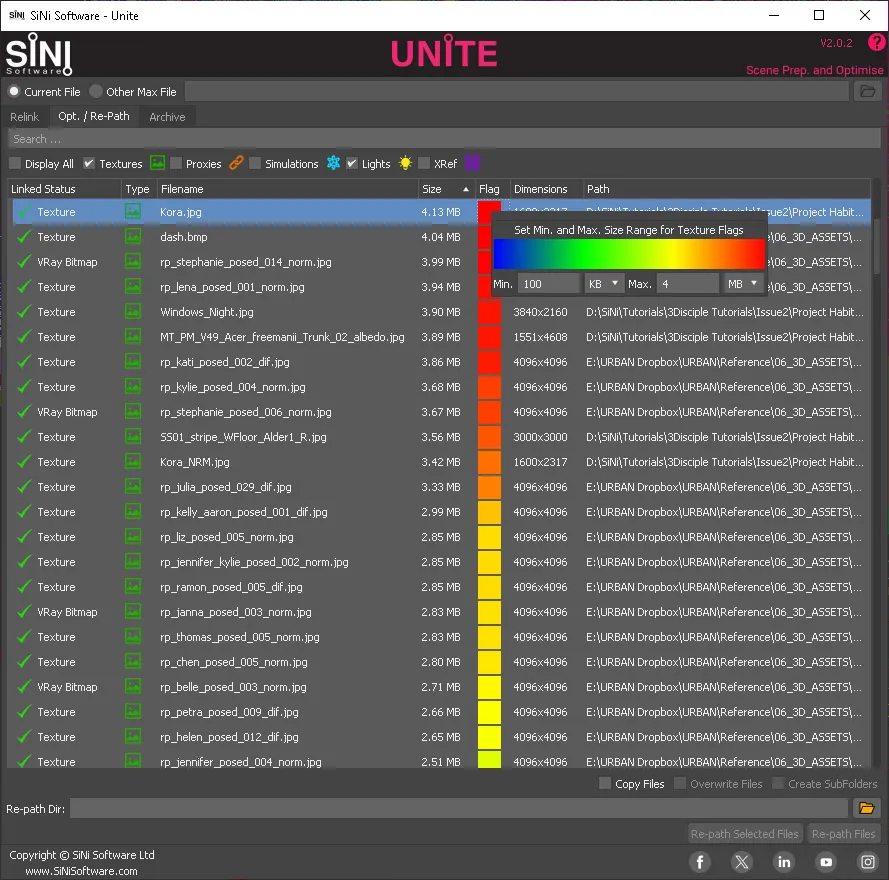
The list UI displays all associated files linked to the scene (Current or Other). Everything is displayed in columns. The columns can be rearranged if required. The column headings;
- Click on any of these to reorder the display of the list.
- Adjust the column width by left-clicking and dragging the column header name.
The UI is adjustable. Hold the mouse over any of the Unite UI edges and the icon will change to arrows. Left-click to drag the UI to resize. This is useful to review long file paths in the list view.
Columns include:
- Linked Status. These are the class categories. The green tick means the file is found. A red cross means the file is missing.
- Type Icon. Displays the associated icon for that class.
- File Name. The file name saved in the scene and on disk.
- Size. The size of the file on disk.
- Flag. The flag displays an icon representing a user-defined scale to quickly identify large files. Flag scale can be adjusted by double-clicking icon.
- Dimensions. This represents texture bitmap size saved on disk.
- Path. Lists the file path.
Flags UI
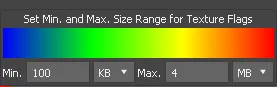
To set the colour flag icons, adjust the minimum and maximum values. Unite will graduate the scale values accordingly.
14. List options (right-click menu)
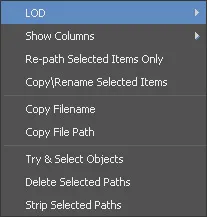
Menu Options;
- LOD - See 15. below.
- Show Columns - Show/hide columns.
- Copy\Rename Selected Items - See Unite (UI) - Rename
- Copy Filename - Copies the file name to the clipboard.
- Copy File Path - Copies file path to the clipboard.
- Try and Select Objects - Attempts to find 3D objects with missing attributes.
- Delete Selected Paths/Proxy Objects - Select the file and delete as required.
- Strip Selected Paths - Select the file and strip paths as required.
15. LOD (Texture bitmap levels of detail)
Optimising the scene using texture LOD will dramatically improve memory performance, making the scene easier to work with and render faster.
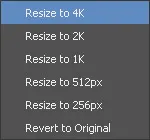
Based on the list selection, resize to an appropriate size for your requirements. Each LOD will be saved in an LOD folder residing in the same folder as the original selected texture. The LOD texture will appear in the list as the same file name, including a suffix indicating which LOD has been generated. To revert to the original texture bitmap, select the file and click Revert to Original. This will reset the bitmap and relink it. All LODs will be kept for re-selection.
WARNING - Turn off Interactive Rendering (ALL RENDERERS), and Viewport IPR (if available), when creating LOD. Interactive Rendering may cause 3ds Max to crash during LOD bitmap generation.
16. Copy/Rename Selected (right-click menu)
This allows users to change the file names, make texture names compliant, and or make copies of the originals. A detailed overview of Unite (UI) - Rename
17. Re-path options
- Copy Files - tick to copy all selected files to the new location.
- Overwrite Files - tick to overwrite duplicate files.
- Create Sub-Folders - check to create file sub-folders based on Class Category Selection.
18. Re-path directory
Select the file path you wish to re-path the listed files to.
19. Repath files
Click on the button to save the project. Unite will automatically create sub-folders based on the Re-path settings (if checked). All files will automatically be re-pathed to these folders.